5S Computer Desktop: Boost Productivity with Lean Workspace
The 5S methodology, a lean management tool, has been widely adopted in various industries to improve efficiency, productivity, and safety. When applied to computer desktops, it can help create a clean, organized, and user-friendly workspace. Let's explore how to implement the 5S principles on your computer desktop to enhance your digital experience.
Before we dive into the 5S principles, let's acknowledge that a cluttered desktop can hinder productivity and cause unnecessary stress. By applying these simple yet effective principles, you can transform your computer desktop into a neat, efficient, and personalized workspace.
Sort
The first 'S' in 5S stands for 'Sort,' which involves removing unnecessary items from your desktop. This could include old files, unused applications, or temporary folders that have accumulated over time.


Start by deleting or moving files you no longer need. Use the search function to find and remove duplicate files. For files you're unsure about, consider creating an 'Archive' folder to store them temporarily while you decide whether to keep or delete them.
Identify Essential Files
Once you've removed unnecessary files, identify the essential ones. These are the files you use frequently or are crucial to your work. Create a folder for these files and place them inside. This will make them easily accessible and keep your desktop clean.


You can also create sub-folders within the essential folder to further organize files based on their categories, such as 'Work,' 'Finance,' or 'Personal.' This will help you maintain a well-structured desktop that's easy to navigate.
Use Desktop Shortcuts Wisely
Instead of placing all your essential files on the desktop, use shortcuts to access them quickly. This will keep your desktop clean while maintaining easy access to your most-used files and applications.
Right-click on the files or folders you want to create shortcuts for, select 'Create Shortcut,' and drag them onto your desktop. You can also customize the appearance of these shortcuts to make them more visually appealing and recognizable.


Set in Order
The second 'S' in 5S is 'Set in Order,' which focuses on arranging the remaining items on your desktop in a logical and systematic manner. This will help you locate files and applications quickly and efficiently.
Start by grouping similar items together. For example, place all your work-related shortcuts in one area and personal files in another. You can also use the grid view in your file explorer to arrange icons neatly and create a more organized layout.
Use Folders and Sub-folders
Create folders and sub-folders to further categorize your files and applications. This will help you maintain a clean desktop while keeping your files organized. For instance, you can have a 'Work' folder with sub-folders for 'Projects,' 'Reports,' and 'Meetings.'


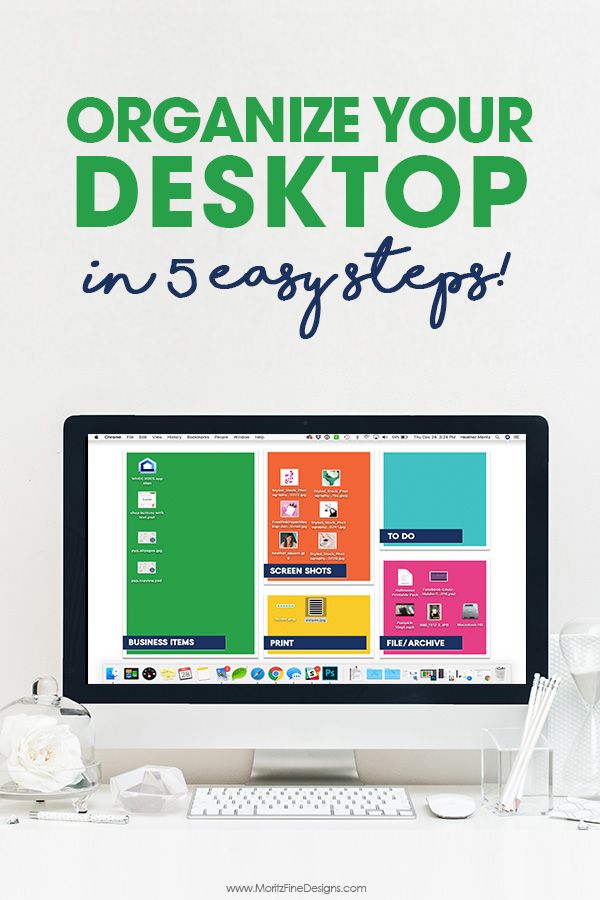


You can also use different colors or icons for your folders to make them more recognizable. This will help you identify the contents of a folder at a glance, saving you time and effort in the long run.
Arrange Icons Neatly
Once you've created folders and sub-folders, arrange the icons within them neatly. Use the 'Align to Grid' option in your file explorer to ensure icons are evenly spaced and aligned. This will give your desktop a clean, professional appearance.
You can also adjust the size of your icons to make them more readable or to fit more icons onto your desktop. Experiment with different sizes to find the one that works best for you.
Shine
The third 'S' in 5S is 'Shine,' which involves cleaning up your desktop's appearance. This includes removing old or outdated wallpapers, icons, and themes that no longer reflect your personal style or preferences.
Start by choosing a clean, uncluttered wallpaper that complements your desktop theme. You can also use a solid color or a simple pattern to create a distraction-free workspace. Avoid using busy or complex wallpapers that can be distracting or overwhelming.
Customize Your Desktop Theme
Customize your desktop theme to match your personal style and preferences. Change the color scheme, font, and other visual elements to create a desktop that's uniquely yours. This will not only make your desktop more visually appealing but also make it more enjoyable to use.
You can also use third-party tools and software to customize your desktop further. These tools can help you create custom icons, change the appearance of your taskbar, and even add widgets and gadgets to your desktop.
Keep Your Desktop Clean
To maintain a clean desktop, make it a habit to put files away in their respective folders after use. Use the 'Send to' function in your file explorer to quickly move files to their designated folders. You can also use the 'Desktop Cleanup' feature in your file explorer to automatically move files to their respective folders.
Regularly review and update your desktop to ensure it remains clean and organized. Remove any files or shortcuts you no longer need, and update your folders and sub-folders as necessary. This will help you maintain a clutter-free desktop that's always ready for use.
Standardize
The fourth 'S' in 5S is 'Standardize,' which involves creating a consistent and repeatable process for maintaining your desktop's organization. This will help you keep your desktop clean and organized over time, even as new files and applications are added.
Start by documenting the steps you've taken to organize your desktop. This includes the folders and sub-folders you've created, the shortcuts you've added, and the customizations you've made to your desktop theme.
Create a Desktop Template
Create a desktop template that includes your essential folders, shortcuts, and customizations. Save this template as a .themepack file, which you can use to quickly restore your desktop to its organized state whenever needed.
To create a desktop template, right-click on your desktop, select 'Personalize,' then 'Themes.' Click on 'Desktop icon settings' and select the icons you want to include in your template. Once you've selected your icons, click on 'Save theme for sharing' to save your template as a .themepack file.
Establish a Routine for Desktop Maintenance
Establish a routine for maintaining your desktop's organization. This could involve dedicating a few minutes each day to put files away, remove unnecessary shortcuts, and update your folders and sub-folders. You can also schedule a weekly or monthly review of your desktop to ensure it remains clean and organized.
By establishing a routine for desktop maintenance, you'll be able to maintain a clutter-free workspace that's always ready for use. This will not only improve your productivity but also reduce the stress and frustration that comes with a disorganized desktop.
Sustain
The final 'S' in 5S is 'Sustain,' which involves creating a system for maintaining your desktop's organization over the long term. This includes educating yourself and others on the importance of desktop organization and the benefits it brings to productivity and efficiency.
Start by sharing your desktop organization tips and techniques with colleagues, friends, and family. You can also create a guide or tutorial that outlines the steps you've taken to organize your desktop and the benefits you've experienced as a result.
Lead by Example
Lead by example by maintaining a clean and organized desktop at all times. When others see the benefits of desktop organization, they're more likely to adopt the practice themselves. This will not only help you maintain a clean desktop but also create a culture of organization within your workplace or home.
You can also encourage others to create their own desktop templates and share them with you. This will not only help you discover new ways to organize your desktop but also foster a sense of community and collaboration around desktop organization.
Incorporating the 5S principles into your computer desktop organization can have a significant impact on your productivity, efficiency, and overall digital experience. By creating a clean, organized, and personalized workspace, you'll be able to work more effectively and enjoy your time spent on your computer. So why wait? Start implementing the 5S principles today and transform your desktop into a workspace that truly reflects you and your needs.
Related Articles

Inspiring Home Office Carpet Design Ideas To Boost Productivity And Style
Transforming your home into a productive workspace is no easy feat, but with the right design ideas, you can create a comfortable and efficient home office...

Stunning Office Desk Theme Ideas to Boost Your Workspace Productivity
Transforming your workspace can dramatically boost both focus and creativity, turning an ordinary desk into a powerful engine for productivity. Office desk...

Small Office Design With Standing Desk: Optimize Your Workspace For Health And Productivity
Transforming a small office space into an ergonomic and productive haven is no easy feat, especially when you're incorporating a standing desk. But fear not...

Funny Desktop Wallpaper For Work Boost Productivity And Smile
Ever found yourself staring at your desktop, longing for a change of scenery? A funny desktop wallpaper could be just the thing to brighten up your workday...

5S Your Computer: Boost Productivity & Efficiency
Keeping your computer clean and organized isn't just about aesthetics; it's about ensuring optimal performance and preventing potential issues. The 5S...

Soundproofing Ideas for Office: Boost Focus and Productivity
Modern offices buzz with collaboration, but constant noise can drain focus and productivity. Unwanted chatter, ringing phones, and hallway footsteps create a...