How to Name a Table Array in Excel
Learning how to name a table array in Excel is a fundamental skill that dramatically improves the readability and maintenance of your spreadsheets. Instead of relying on messy cell references like B2:D10, you create a descriptive label that acts like a clear, memorable identifier for your data range. This structured reference system is the backbone of creating dynamic, easy-to-underformulas that adjust automatically when you add or remove rows. Think of it as giving your data a proper name so both you and your colleagues can instantly understand its purpose.
This technique is not just a neat trick; it is a best practice that reduces errors and saves significant time during complex calculations. When you use descriptive names, you transform a raw grid of numbers into a well-organized database that is intuitive to navigate. Whether you are tracking sales figures, managing a budget, or analyzing student grades, assigning a clear title to your data range makes the entire process more efficient. The initial setup takes a little extra effort, but the long-term payoff in accuracy and speed is well worth it.
Understanding Structured Table References
Before diving into the naming process, it is essential to understand how Excel's table reference system works. A table array is simply a block of cells that you define as a cohesive unit, and Excel allows you to refer to these blocks by name rather than by coordinate. This method is far less prone to errors because the names remain constant even if you sort or filter the data. Using names like "SalesData" or "EmployeeRecords" makes formulas much easier to read and debug compared to cryptic cell addresses.


The foundation of this process lies in defining the range correctly so Excel recognizes the exact boundaries of your data. You need to ensure that your data is contiguous, meaning there are no blank rows or columns disrupting the rectangle of information. Once the data is clean and organized, you can leverage Excel's Name Manager or the Name Box to create a formal identity for that selection. This identity becomes the reliable anchor for all your future calculations.
The Role of the Name Box
The Name Box, located to the left of the formula bar, serves as the quickest tool for naming your table array. After selecting your desired data range, you simply type the chosen name directly into this box and press enter. This method is ideal for beginners because it is visual and requires only a few seconds to complete. It provides immediate feedback and is perfect for creating straightforward, single-range names without additional options.


However, the Name Box has limitations regarding scope and complexity. By default, names created here are often confined to the specific worksheet you are currently viewing, which might not be ideal for multi-sheet workbooks. For more control over visibility and scope, you will eventually want to use the Name Manager, which allows you to create names that work across the entire workbook. Mastering both tools ensures you can handle simple and complex naming tasks with equal proficiency.
Utilizing the Name Manager
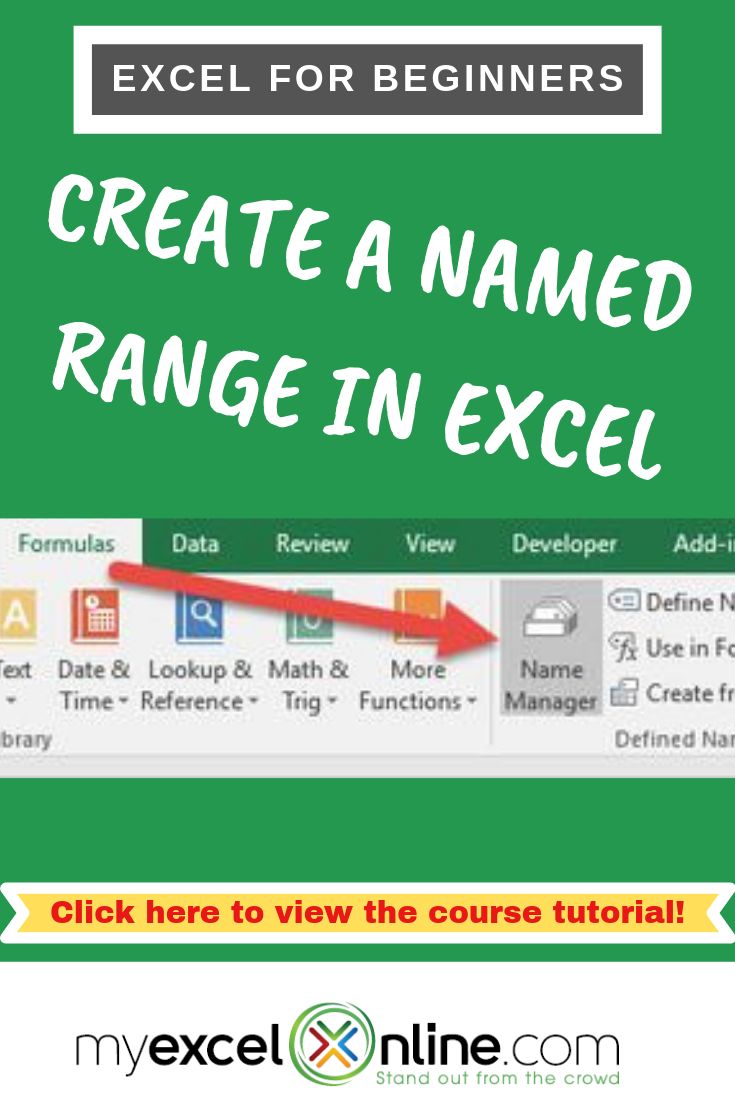
The Name Manager is the central hub for managing all defined names in your Excel file, providing a robust interface for creating and editing table array identifiers. To access it, you navigate to the Formulas tab on the Ribbon and click on "Name Manager." From this window, you can create new names, modify existing ones, and even delete names that are no longer relevant. It offers a cleaner, more organized approach compared to the Name Box, especially when dealing with many definitions.
Within the Name Manager, you have the option to specify the scope of your name, choosing between the current worksheet or the entire workbook. You can also add a detailed comment to remind yourself of the purpose of the name later on. This level of detail is crucial for collaborative projects where multiple users might be working on the same file. The Name Manager ensures that your naming conventions remain consistent and well-documented over time.


Best Practices for Naming Conventions
Establishing a clear naming convention is arguably the most important aspect of learning how to name a table array in Excel. Without a consistent system, names can become confusing and contradictory, leading to frustration and formula errors. You should aim for names that are descriptive, concise, and free of spaces or problematic characters. Think of the name as a summary of the data's content and function.
Using underscores or camelCase instead of spaces, avoiding special symbols, and starting with a letter are technical requirements that keep your formulas running smoothly. For example, "Q4_Sales" or "EmployeeData" are excellent names because they are specific and easy to interpret at a glance. Avoiding vague names like "Data1" or "Range1" ensures that anyone reviewing your formulas immediately understands the context of the data being used.
Descriptive and Contextual Names
Descriptive names remove ambiguity and make your spreadsheets self-explanatory. Instead of naming a range "ColumnB," you should use something like "ProductPrices" or "MarketingBudget." This practice turns your worksheet into a narrative where the data tells its own story. When you revisit a file months later, or when a colleague uses it, these clear names prevent misinterpretation and save valuable time.


Context is equally important, especially in large workbooks with multiple sheets. If the same data exists on different tabs for different purposes, you need to differentiate the names accordingly. For instance, you might use "Sales_2023_RegionEast" on one sheet and "Sales_2023_RegionWest" on another. This distinction prevents accidental cross-referencing and ensures that every calculation pulls the correct information from the intended location.
Avoiding Common Pitfalls
Even experienced users encounter pitfalls when naming table arrays, so being aware of them is crucial. One common mistake is using spaces or reserved keywords like "SUM" or "DATE" as names, which can cause conflicts and errors in your formulas. Always test your new name by using it in a simple formula to confirm that Excel accepts it and recognizes the reference correctly.
Another frequent issue is creating names that are too generic or overlap with cell references. For example, naming a range "Price" might conflict if there is a cell reference named Price in another part of the sheet. To mitigate this, use the Name Manager to review existing names periodically and ensure that your new table array names are unique and logically grouped. This proactive management keeps your workbook clean and functional.
As you continue to work with named table arrays, you will discover how they streamline complex calculations and make your data analysis more intuitive. The initial effort you invest in organizing and naming your ranges pays off in the form of faster troubleshooting and more reliable results. Treat your names as an integral part of your data architecture rather than an afterthought.
Experimenting with these techniques in your own files will solidify your understanding and reveal new ways to optimize your workflow. By consistently applying these principles, you transform Excel from a simple calculator into a powerful database tool that adapts to your needs.
Related Articles

How to Name a Table in Excel on Mac
Working with tables on your Mac can become much easier when you learn how to name a table in Excel on Mac, giving you a clear way to reference data ranges...
How to Name a Table Range in Excel
Learning how to name a table range in Excel transforms how you interact with data by turning messy cell references into clear, memorable identifiers. Instead...
How to Name a Table in Excel
Learning how to name a table in Excel is a fundamental skill that significantly boosts data organization and reporting clarity. A well named table turns a...

Wedding Table Name List Template
Planning a wedding involves countless details, and one of the smallest touches that can make a big difference is the table naming system. A wedding table name...

Creative Christmas Table Name Tags Ideas Stylish Holiday Decor Trending Searches
Creating a warm and welcoming Christmas gathering starts long before the first toast, and one of the simplest ways to set that festive tone is through...

Elegant Wedding Table Name Card Ideas SEO Friendly Designs
Wedding table name card ideas set the tone for your celebration and guide guests to their seats with effortless elegance. These small details transform a...