Master WhatsApp Group Instructions: The Ultimate Step-by-Step Guide
Welcome to your comprehensive guide on WhatsApp group instructions! In today's digital age, WhatsApp groups have become a vital platform for communication, collaboration, and community building. Whether you're a group admin, a participant, or just starting out, this guide will walk you through everything you need to know about managing and participating in WhatsApp groups.
From creating groups to managing members and facilitating discussions, we've got you covered. So, let's dive right in and explore the world of WhatsApp groups!
Understanding WhatsApp Groups
WhatsApp groups allow you to create a space where you can communicate with multiple people at once. They are perfect for teams, families, friends, or any community that needs to stay connected and engaged. Before we delve into the instructions, let's quickly understand the basics of WhatsApp groups.


In a WhatsApp group, one or more admins manage the group. Admins have the power to add or remove members, change group settings, and even appoint other admins. Members, on the other hand, can send messages, share media, and participate in group discussions.
Creating a WhatsApp Group
Creating a WhatsApp group is a breeze. Here's a step-by-step guide to help you get started:


1. Open WhatsApp and tap on the three-dot menu icon at the top right corner of your screen.
2. Select 'New Group' from the menu that appears.
3. Tap on the 'Add Participants' button at the top right corner of your screen and select the contacts you want to add to your group.


4. Once you've selected your contacts, tap on the 'Create' button at the top right corner of your screen.
5. You'll be prompted to name your group. Enter a name and tap on the 'OK' button.
Adding and Removing Group Members
As a group admin, you have the power to add and remove members from your group. Here's how you can do it:


1. Open your WhatsApp group and tap on the group name at the top of your screen.
2. Tap on the 'Add Participant' button and select the contacts you want to add to your group.
3. To remove a member, tap on the group name at the top of your screen, then tap on the 'Participants' button.
4. Tap on the name of the member you want to remove, then tap on the 'Remove' button.
Managing Group Settings
WhatsApp offers several settings that allow you to customize your group experience. Here are some key settings you should be familiar with:
1. **Group Description**: You can add a description to your group to help members understand its purpose and guidelines.
2. **Group Invite Link**: You can generate an invite link to allow anyone with the link to join your group.
3. **Group Media Disappearing Messages**: You can enable this setting to make all media sent in the group disappear after a set time.
4. **Group Admin Controls**: You can choose to make all group members admins, or keep admin powers to yourself. You can also choose to make only verified admins able to send messages in the group.
Changing Group Settings
Here's how you can change your group settings:
1. Open your WhatsApp group and tap on the group name at the top of your screen.
2. Tap on the 'Group Settings' button.
3. Here, you can change various settings like the group description, invite link, media disappearing messages, and admin controls.
Managing Group Discussions
As a group admin, you can manage group discussions to ensure they remain productive and respectful. Here are some tips:
1. **Set Clear Guidelines**: Establish clear guidelines for group discussions at the outset. This could include rules about what topics are allowed, how members should interact with each other, and consequences for inappropriate behavior.
2. **Appoint Moderators**: If your group is large, consider appointing moderators to help you manage discussions.
3. **Remove Unwanted Messages**: As an admin, you can remove unwanted messages from the group. Simply long-press on the message, then tap on the 'Delete' button and select 'Delete for Everyone'.
Participating in WhatsApp Groups
Even if you're not an admin, there are plenty of ways you can contribute to your WhatsApp groups. Here are some tips:
1. **Stay On-Topic**: Stick to the group's purpose and avoid derailing discussions with off-topic messages.
2. **Be Respectful**: Always treat other group members with respect. Remember that everyone has different opinions and perspectives.
3. **Use Reactions**: WhatsApp allows you to react to messages with emojis. This can be a great way to show agreement, disagreement, or other reactions without cluttering the group with too many messages.
Leaving a WhatsApp Group
If you no longer wish to participate in a WhatsApp group, you can leave it at any time. Here's how:
1. Open the WhatsApp group you want to leave.
2. Tap on the group name at the top of your screen.
3. Tap on the 'Exit Group' button.
4. Confirm that you want to leave the group by tapping on the 'Exit' button again.
And there you have it! With these WhatsApp group instructions, you're now ready to create, manage, and participate in WhatsApp groups like a pro. Whether you're using WhatsApp for work, family, or socializing, these tips will help you make the most of this powerful communication tool. Happy chatting!
Related Articles

The Ultimate Guide to Building an Aluminum Patio Cover: Step-by-Step Instructions
An aluminum patio cover offers a durable and stylish way to expand your living space while protecting against sun and rain. This type of structure is...

How to Create a Group on WhatsApp: Easy Step-by-Step Guide
Ever found yourself wishing you could keep in touch with a group of people all at once? WhatsApp, the world's most popular messaging app, makes this a breeze...

The Ultimate Guide to WhatsApp Read Receipts: Master the Hidden Read Status
In the digital age, communication has evolved significantly, with instant messaging platforms like WhatsApp becoming a staple for billions worldwide. One of...

How to Do a Formal High Ponytail: The Ultimate Step-by-Step Guide
Elevate your hairstyle game with a timeless classic: the formal high ponytail. This sleek and sophisticated look is perfect for any professional setting or...

Master ADB List Disabled Packages: Ultimate Guide
When managing Android devices, especially for troubleshooting or deep system analysis, encountering disabled packages is a common scenario. The command adb...
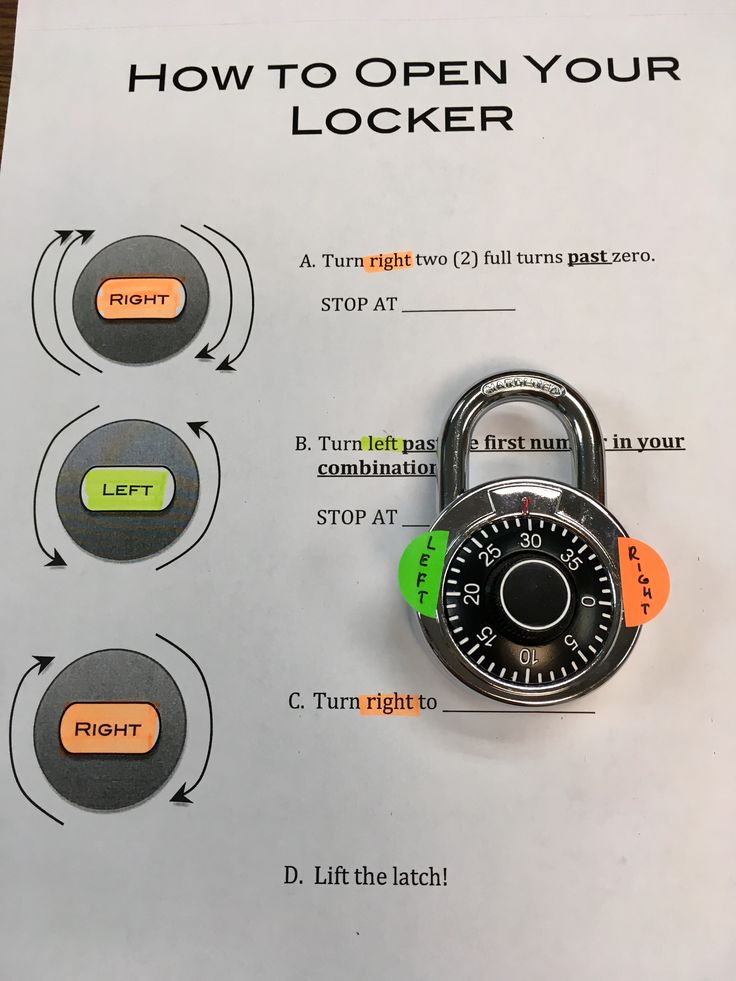
School Locker Lock Instructions: Step-by-Step Guide
Learning how to use a school locker lock correctly can save you time and stress during a busy day. These sturdy metal storage units line the hallways of most...